
Powerlynx administrators can now sign in using their company’s existing identity provider instead of a separate Powerlynx password. Sign-in, password policies, and account deactivation all stay in the system where the rest of the company’s accounts are managed.
For businesses that already run Microsoft Entra ID, Google Workspace, Okta, or another identity provider, this means the Powerlynx management platform fits into the same access-management workflow as everything else. When a team member leaves and their directory account is disabled, their access to Powerlynx through that provider is disabled at the same time.
See SSO in Powerlynx
Watch this overview to see how Single Sign-On works in Powerlynx — from configuring an identity provider to the administrator login experience.
Works with Your Existing Identity Provider
Powerlynx uses OpenID Connect (OIDC), a widely supported standard for identity federation. There is no provider-specific plugin to install. Any identity provider that supports OpenID Connect works, including:
- Microsoft Entra ID;
- Google Workspace;
- Okta;
- Keycloak.
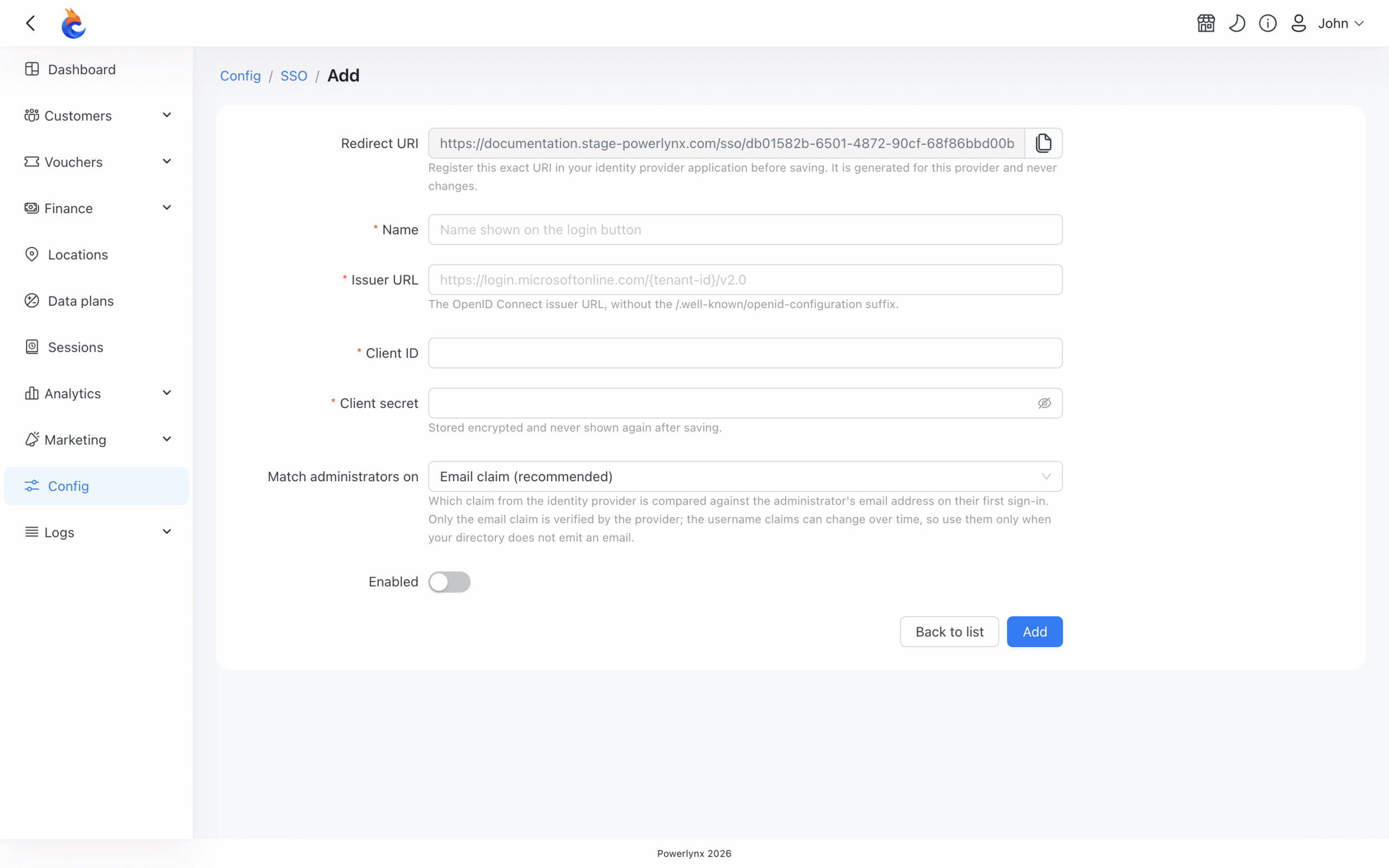
Setting up a provider requires filling in a form in Powerlynx: the issuer URL, the client ID, and the client secret issued by the identity provider. The client secret is stored encrypted and is not displayed again after saving.
Powerlynx generates a Redirect URI when you open the Add provider form. This URI is what you register in your identity provider application, and it never changes, renaming the provider or reordering login buttons later does not affect it.
Support Multiple Identity Providers at Once
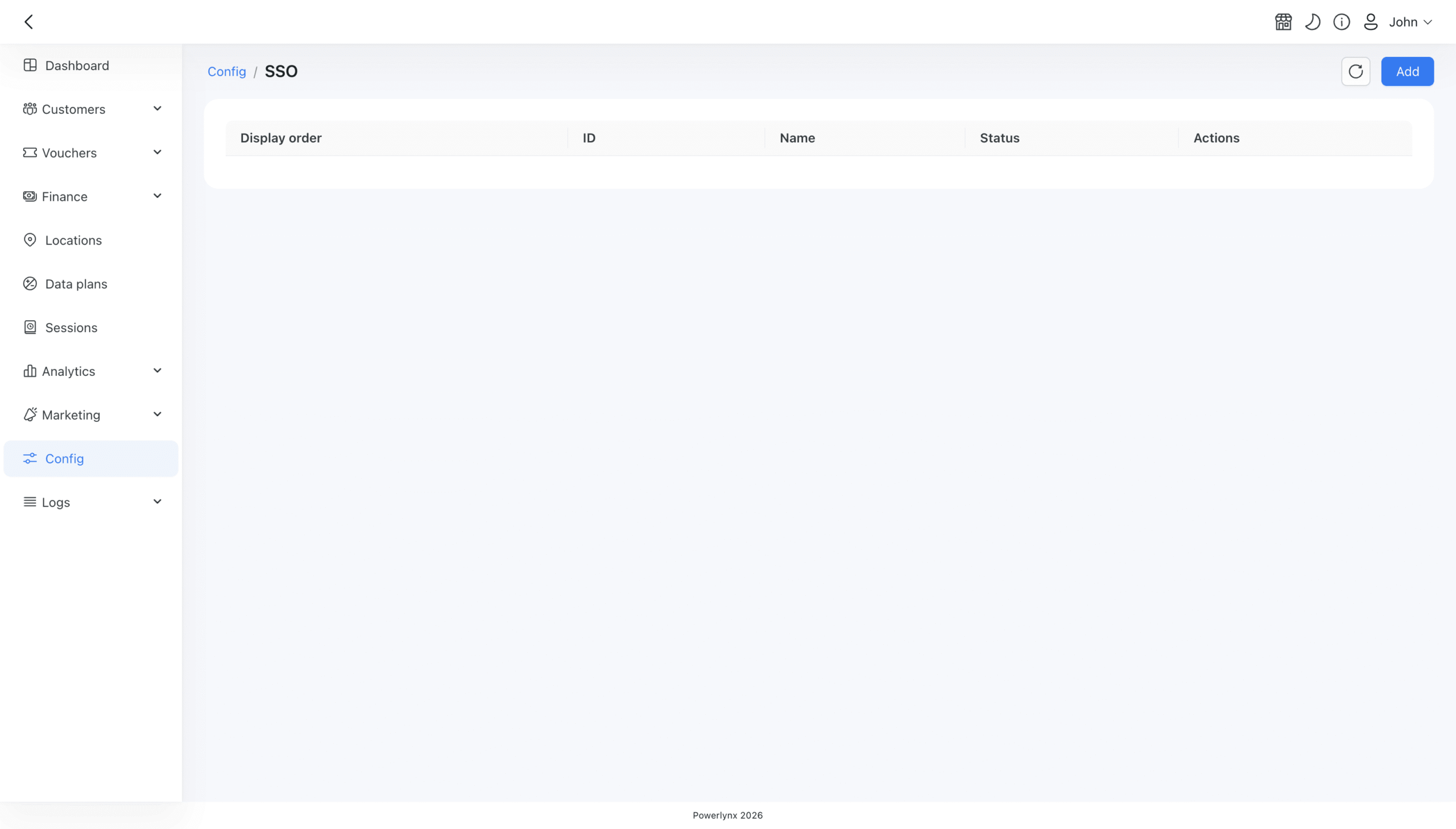
More than one SSO provider can be configured and enabled simultaneously. Each enabled provider gets its own button on the Powerlynx login page, and administrators can control the order those buttons appear by reordering the providers list.
This is useful for organizations that work with multiple identity environments — for example, separate Microsoft Entra tenants for different departments, or a mix of corporate and partner identity systems.
Manage Administrator Access Centrally
When SSO is active, the identity provider handles authentication. Password rules, account lockouts, and multi-factor authentication settings stay where they are already configured, in the company’s directory. Powerlynx doesn’t need a parallel policy for administrators who sign in through SSO.
The first time an administrator signs in through a provider, Powerlynx links that external identity to their existing Powerlynx administrator account. By default, the link is made using the email address returned by the identity provider. If a directory doesn’t send an email claim, the match can be switched to a username claim instead.
After the link is established, future sign-ins through that provider go directly to the administrator’s account without any additional mapping step.
Review and Remove Linked SSO Accounts
Each administrator’s profile in Powerlynx includes a Linked SSO accounts section. It lists every provider that administrator can currently sign in through, the account ID on the provider’s side, and when it was last used.
Any linked identity can be unlinked from this view. Unlinking removes that sign-in route for that administrator — their Powerlynx account and password login are not affected.
Password Login Stays Available
Enabling SSO does not switch off password login. The standard Powerlynx login form remains available alongside the SSO provider buttons, so administrators always have an alternative way in if an identity provider becomes unreachable or a client secret expires.
This is worth keeping in mind during initial setup, and it means a misconfigured provider doesn’t result in a lockout.
Where to Configure SSO
SSO providers are managed under Config → System → SSO. Only super administrators can access this section.
Full setup instructions, including the Microsoft Entra ID configuration walkthrough and notes on common issues like missing email claims, are in the SSO documentation.
SSO handles authentication — who can sign in. What administrators can see and do after signing in is controlled separately through administrator roles and permissions.
Single Sign-On makes Powerlynx fit more naturally into how companies already manage their teams. Administrators sign in with accounts they already have, access follows the company’s existing policies, and removing someone’s access to Powerlynx is part of the same offboarding process as everything else.