
Most Powerlynx deployments involve more than one person. A support agent handles customer requests. A finance team member reviews payments and reports. A network technician manages hotspot configurations. Each of these people uses the same platform, but their responsibilities are different, and so is the information they actually need.
Powerlynx now lets super administrators create custom roles that define exactly which parts of the dashboard each administrator can access and what they can do there. A support agent can be given access to Customers and Vouchers without seeing Finance or Config settings. A finance employee can view payments and reports without being able to touch hotspot configurations.
Once a role is assigned, Powerlynx shows that administrator only the menus, pages, and actions their role allows. Everything else is hidden.
See custom admin roles in action
Watch this short overview to see how custom roles and permissions work in Powerlynx — from creating a role and setting its permissions to assigning it to an administrator.
What are custom admin roles in Powerlynx
Powerlynx includes three built-in roles that cannot be edited or deleted:
- Super administrator — full access to everything, including role management and assignment.
- Read-only — can view the entire dashboard, including finance data and reports, but cannot change anything.
- Reseller — for administrators working in the Reseller Portal, where their access is defined by organization roles.
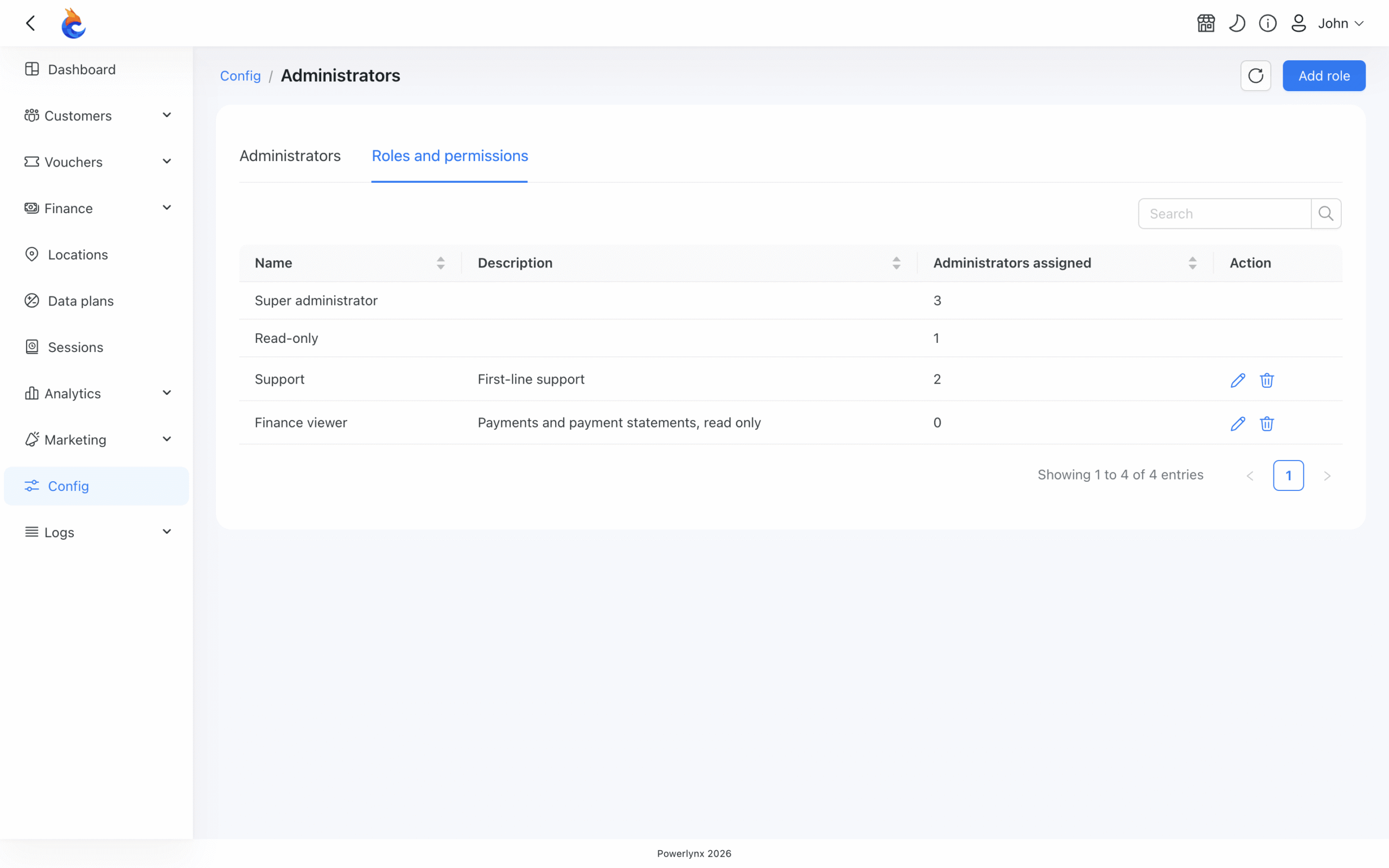
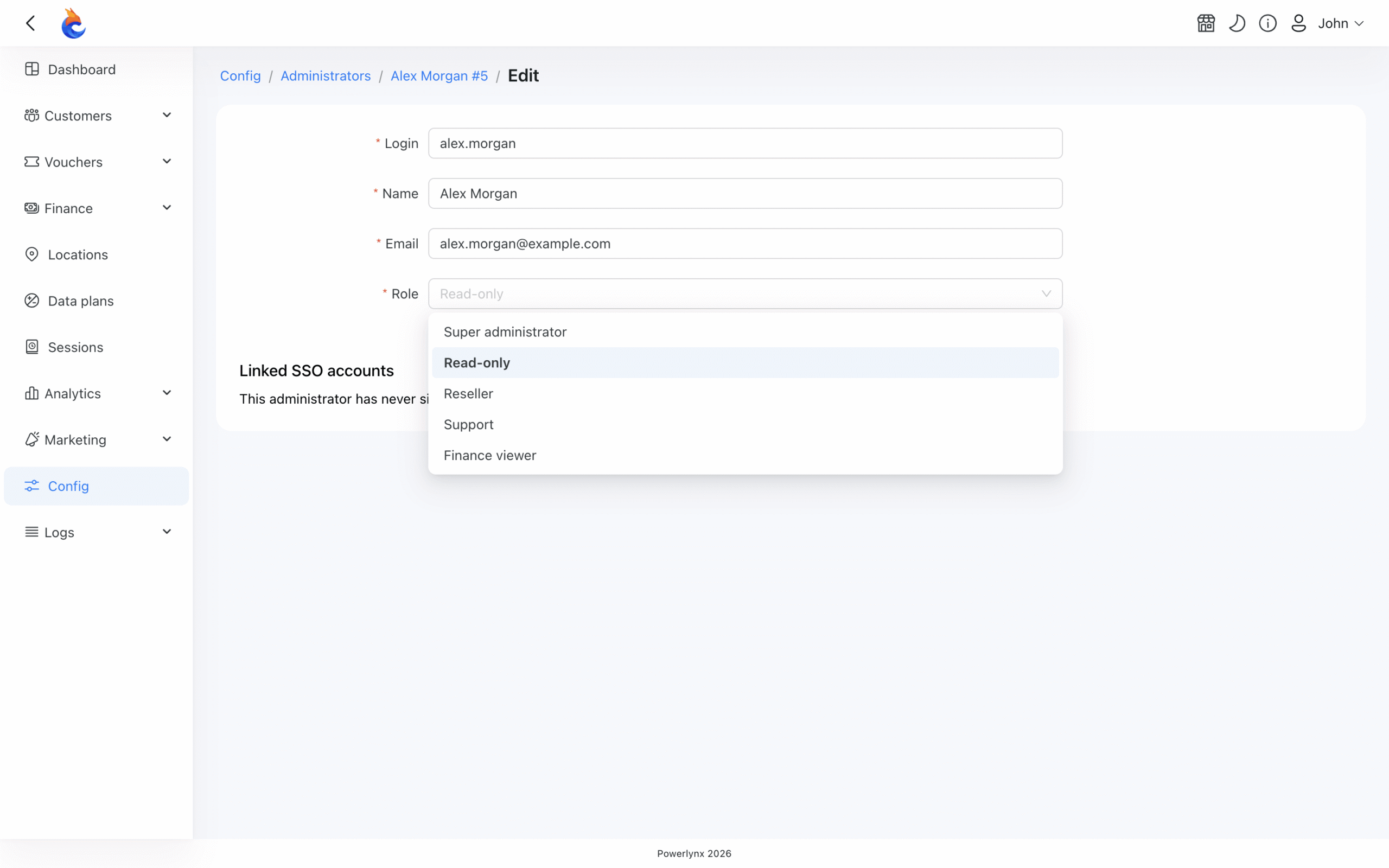
Beyond these, a super administrator can create any number of custom roles. A custom role has a name, an optional description, and a set of permissions — one for each area of the platform. Each administrator holds exactly one role.
Custom roles are managed under Config → System → Administrators, on the Roles and permissions tab. Only super administrators can see and use this tab.
Choose What Each Administrator Can Access
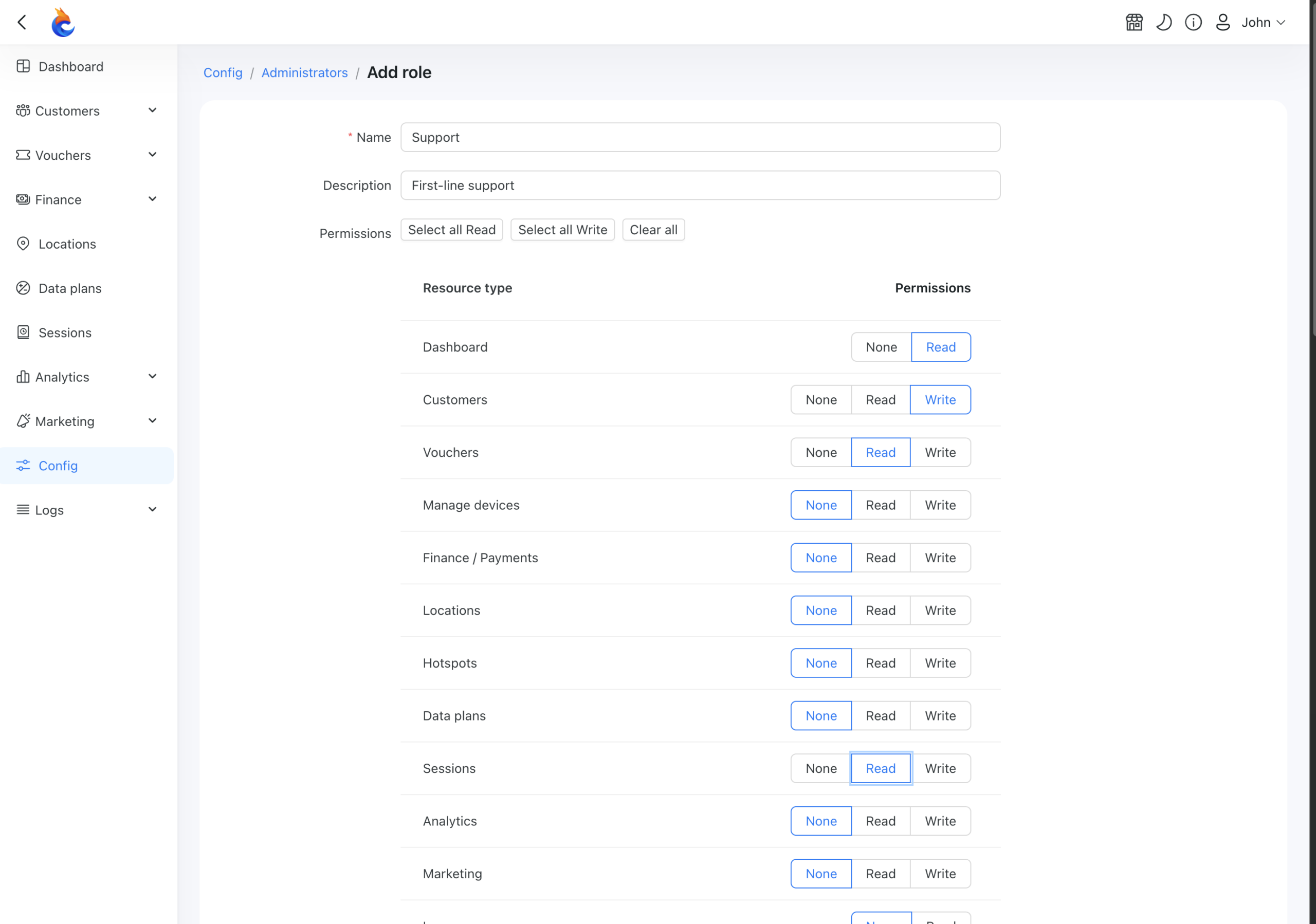
When creating or editing a custom role, you set a permission level for each area of the platform. There are three levels:
- None — the area is hidden from that administrator entirely;
- Read — the administrator can open and view the area but cannot make changes;
- Write — the administrator can create, edit, and delete records in that area. Write always includes Read.
Not every area supports all three levels. Sections that display information only (like the Dashboard overview) offer only None and Read.
The permission matrix covers the main sections of the platform: Dashboard, Customers, Vouchers, Manage devices, Finance / Payments, Locations, Hotspots, Data plans, Sessions, Analytics, Marketing, Logs, and License. It also lists every Config page individually — for example Config · Payment gateways, Config · Email, and specific configuration tools like mass voucher creation. This means access can be granted at a very granular level.
A few separations are intentional. Hotspots are a separate permission from Locations, because hotspot records contain device credentials. Config · Payment gateways is separate from Finance / Payments, so someone reviewing payment history doesn’t automatically have access to gateway credentials. Analytics also opens Reports, where payment lists can be exported — to keep revenue data fully restricted, both Finance / Payments and Analytics should be set to None.
Permissions apply across all locations in the account. There is no per-location access restriction, an administrator either has access to an area or they don’t.
What Administrators with a Custom Role See
An administrator’s dashboard is shaped entirely by their role. The main menu shows only the sections they have permission to open. The Config entry appears only if they can open at least one Config page.
Inside a page, anything they can’t use (buttons, row actions, tabs, form fields) is hidden rather than greyed out. If they have Read access to a record but not Write, the edit form is visible but greyed out, with no save button.
The dashboard overview adapts too. Top stat cards for areas they can’t access show dashes and don’t link anywhere. Charts appear only when the administrator has access to the underlying data.
If an administrator types a URL for a page they’re not permitted to view, they see an Access Denied message naming the page and asking them to contact their administrator. There’s no silent failure.
When a super administrator changes a role, administrators currently signed in with that role see the updated menus and permissions after they reload the page.
Practical Use Cases
Customer Support Team
A support agent spends most of their time looking up customers, checking their vouchers, and reviewing session history. They rarely need to touch hotspot settings or financial records.
A custom role for this team might include Read or Write access to Customers, Vouchers, and Sessions, with None set for Finance / Payments, Config pages, and Analytics. The agent sees only what their job requires. If a customer calls about a billing issue, the support agent can escalate it to someone with finance access rather than handling it directly, which is how most operators want things to work.
Finance Team
A finance employee needs to review payment records, generate reports, and possibly export data for accounting. They have no reason to manage hotspot devices or change platform configuration.
A Finance role might include Read access to Finance / Payments, Analytics, and Reports, with Write access to nothing that affects the network or customer-facing settings. Config · Payment gateways can remain restricted — they can see transactions without having access to the credentials behind them.
Network Operations Team
A network technician is responsible for hotspot devices and the infrastructure behind them. They need access to Hotspots, Locations, and device management. They don’t need to see customer payment data or run marketing campaigns.
A Network role might give Write access to Hotspots, Locations, and Manage devices, with None or Read for Finance / Payments and Marketing. The technician can work freely on network configuration without being exposed to business information that isn’t relevant to their work.
Why Custom Roles Matter
The most immediate benefit is clarity. When an administrator logs in and sees only the sections relevant to their job, there’s less to navigate and less risk of accidental changes in areas they don’t fully understand.
For operators running larger teams or managing Wi-Fi for multiple business types (hotels, ISPs, venues) the ability to separate support, finance, and network responsibilities in a single platform matters. A role created once can be assigned to multiple administrators and updated at any time. When a role is updated, every administrator who holds it gets the change immediately.
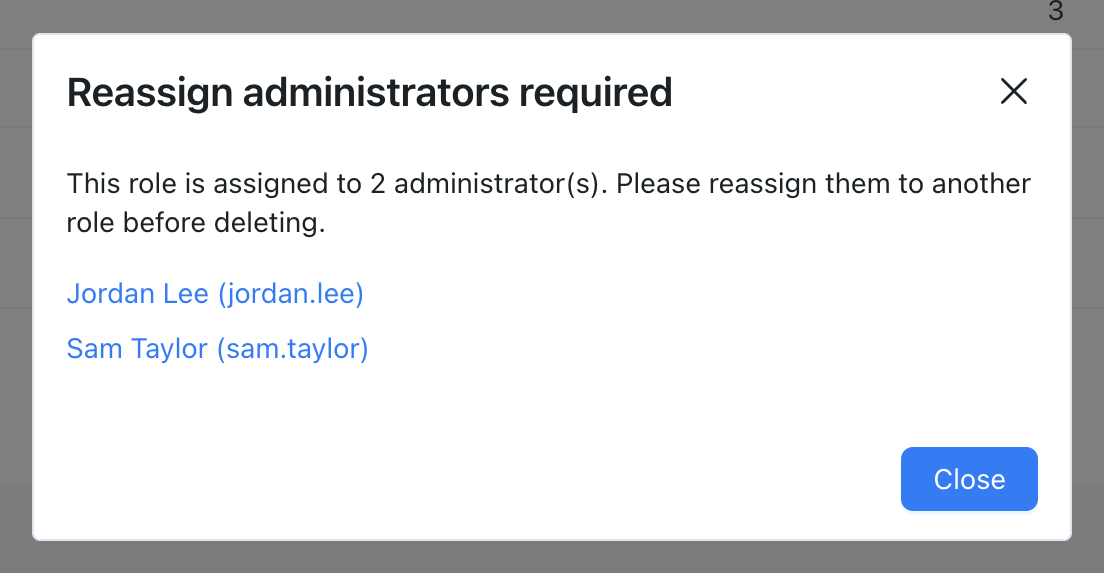
Deleting a custom role requires that no administrators currently hold it. If a role still has administrators assigned, Powerlynx lists them and asks you to reassign each one before the deletion proceeds.
How to Get Started
Custom roles are managed under Config → System → Administrators, on the Roles and permissions tab. Only super administrators can access this tab.
Full documentation — including step-by-step instructions for creating roles, assigning them, and editing permissions — is at docs.powerlynx.app/system/administrators.html.
If your team authenticates through a corporate identity provider, SSO login for administrators is available alongside custom roles. SSO handles who can sign in; custom roles handle what they can do once they’re in.
Custom admin roles give operators a practical way to match platform access to actual responsibilities. Support, finance, and network teams each get the dashboard they need — without seeing the parts that aren’t relevant to their work.