
This guide shows how to use a TP-Link Omada Wi-Fi deployment — EAP access points managed by an Omada Software Controller — as a Powerlynx captive-portal NAS, using the RADIUS + External Web Portal flow.
The Omada controller (not each individual EAP) is the RADIUS client and the CoA/PoD (UDP 3799) receiver. A client that joins the hotspot SSID is redirected to the Powerlynx splash page. After the user logs in or pays, Powerlynx auto-POSTs the client’s browser back to the controller’s /portal/radius/browserauth endpoint, and the controller performs the RADIUS exchange (auth + accounting) with Powerlynx over a WireGuard tunnel.
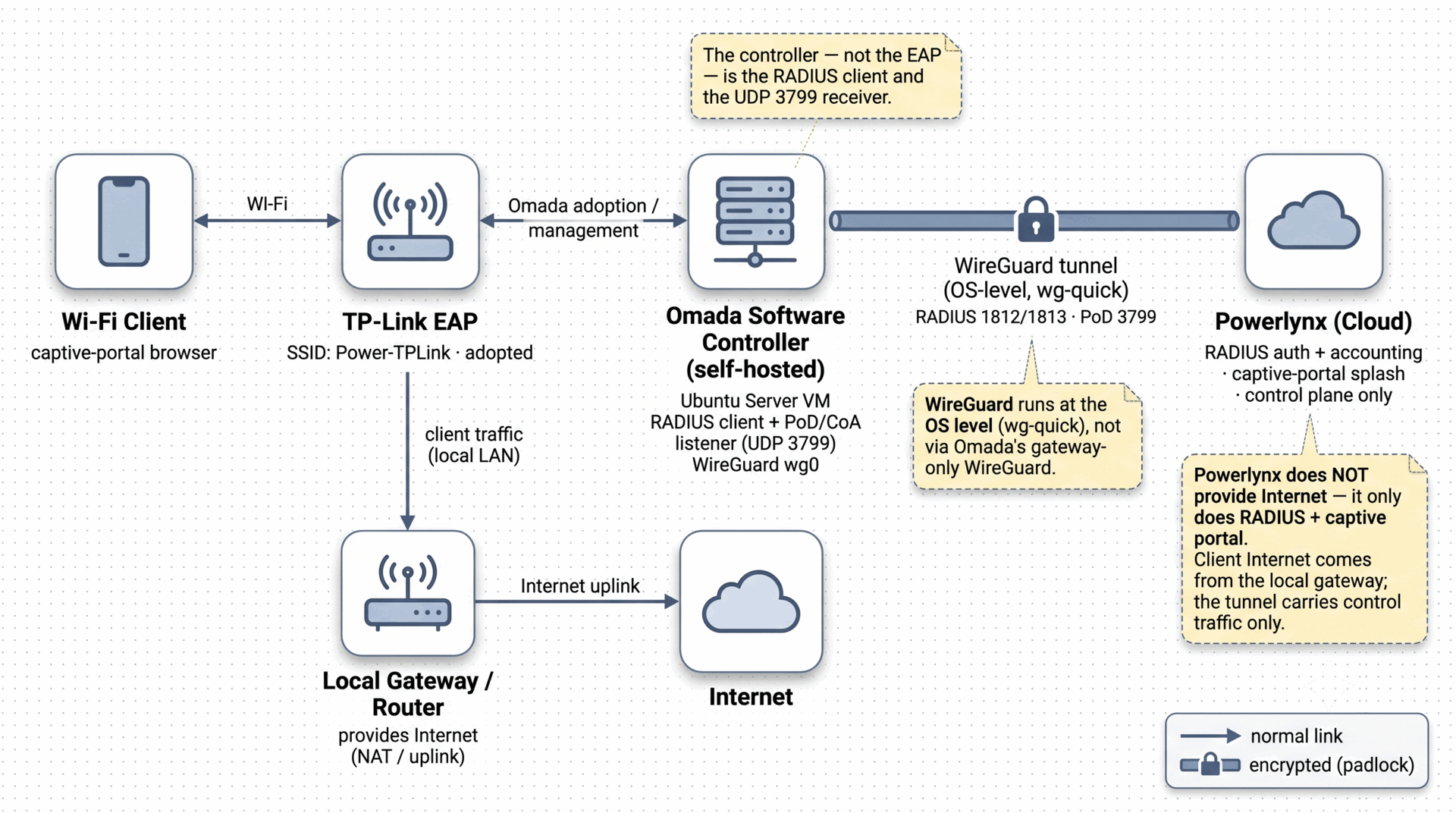
!Important: On-premise controller only — Omada Cloud does not work!
Both setups below require a self-hosted / on-premise Omada controller. On Omada Cloud it does not work — the cloud controller cannot receive RADIUS PoD or CoA (UDP 3799) from Powerlynx, so remote disconnect and dynamic authorization are impossible there.
There are two ways to build a TP-Link Omada hotspot with Powerlynx, depending on whether you use a TP-Link Omada gateway (ER-series):
- Setup 1 — Ubuntu host / Omada Software Controller as the gateway + TP-Link EAP. Use this when you do not have (or do not want to use) a TP-Link gateway. The Ubuntu server running the Omada Software Controller fills the “gateway” role: it terminates the WireGuard tunnel to Powerlynx at OS level and is the RADIUS client and CoA/PoD receiver. You need only that server plus a TP-Link EAP — no Omada router/gateway. Client Internet is provided by the site’s existing router/uplink. This guide documents this setup.
- Setup 2 — Omada controller + TP-Link Omada gateway (ER-series) + TP-Link EAP. Use this when you do run a TP-Link Omada gateway; the gateway terminates the WireGuard tunnel to Powerlynx (Omada’s built-in WireGuard is a gateway-only feature) and acts as the RADIUS client. The Powerlynx-side configuration is the same as Setup 1.
Only Setup 1 is documented step-by-step below (it is the configuration validated end-to-end). If you need assistance with Setup 2 (a TP-Link Omada gateway), contact the Powerlynx support team at support@powerlynx.app.
Requirements
- Linux host — Ubuntu 16.04 / 18.04 / 20.04 / 22.04 / 24.04, or Debian 8–12 (64-bit). Windows is also supported.
- OpenJDK 17+ (64-bit) for controller v5.15.20 and above (earlier builds use Java 8+).
- MongoDB up to version 8 for v5.15.20+ (up to v7 for 5.14.20+).
- Apache Commons Daemon (jsvc) — v1.0.15 recommended with OpenJDK 17.
- Omada Software Controller, v5 line (this guide uses 5.15.x; current shipping is v6.2.x — pick 5.15.x under “Previous Version” on the download page).
- A TP-Link Omada EAP (e.g. EAP225 v3+).
- Static IP for the controller host — EAP adoption and RADIUS config reference it by IP.
- A Powerlynx Location and a hotspot already created.
How to Configure TP-Link Omada with Powerlynx: Step-by-Step Integration Guide
Quick Configuration Overview
- Install the Omada Software Controller on the Ubuntu host
- Adopt the EAP and create the hotspot WLAN (SSID)
- Set up the WireGuard tunnel between the controller host and Powerlynx
- Configure the Powerlynx hotspot (NAS type, NAS IP, RADIUS secret)
- Configure the Omada Portal and RADIUS profile
- Set recommended RADIUS attributes on the Powerlynx NAS type
- Verify: capture RADIUS traffic and test a full session
Detailed Steps
Step 1. Install the Omada Software Controller
Install the Omada Software Controller (v5 line) on the Ubuntu host. Official download and install links are in the References section at the end of this guide.
# 1. OpenJDK 17 + jsvc
sudo apt update
sudo apt install -y openjdk-17-jre-headless jsvc curl gnupg

# 2. MongoDB 8.0
curl -fsSL https://www.mongodb.org/static/pgp/server-8.0.asc | \
sudo gpg -o /usr/share/keyrings/mongodb-server-8.0.gpg --dearmor
echo "deb [ arch=amd64,arm64 signed-by=/usr/share/keyrings/mongodb-server-8.0.gpg ] https://repo.mongodb.org/apt/ubuntu jammy/mongodb-org/8.0 multiverse" | \
sudo tee /etc/apt/sources.list.d/mongodb-org-8.0.list
sudo apt update && sudo apt install -y mongodb-org

# 3. Install the controller .deb (download from the official page — see References)
sudo dpkg -i omada_v5.15.24.19_linux_x64_*.deb
# If dpkg complains about the jsvc version:
# sudo dpkg --ignore-depends=jsvc -i omada_v5.15.24.19_linux_x64_*.deb

# 4. Start
sudo tpeap start
tpeap status
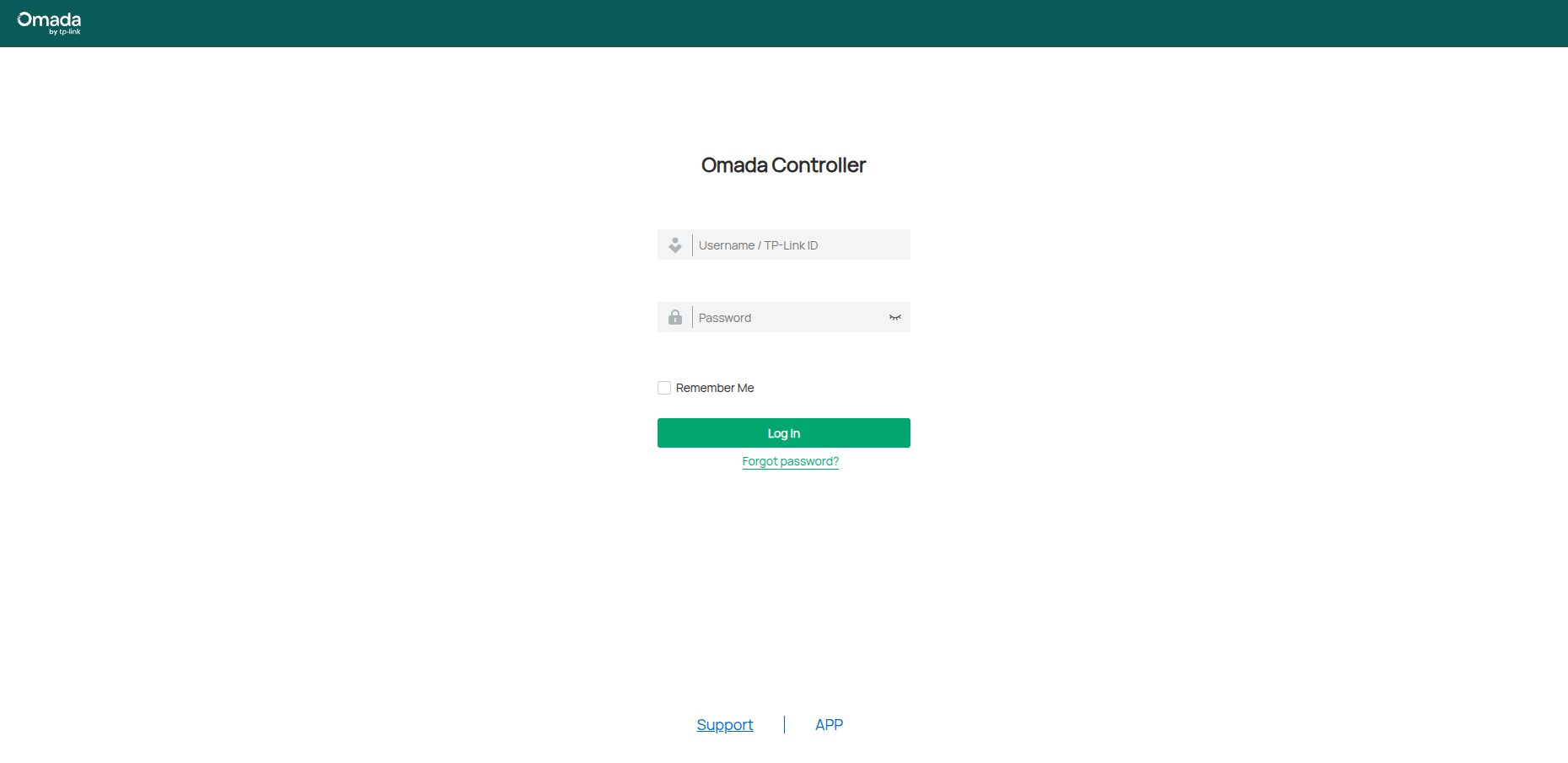
Open the UI at https://<controller-ip>:8043 and run the setup wizard: create the admin account, create a site, and skip Omada Cloud access (this is an on-prem setup).
Note: The first start can take several minutes. The web ports (8043/8088) only bind at the very end of startup — watch logs/server.log until the ports open.
Verify the install:
java -version                          # OpenJDK 17

sudo tpeap status                      # "Omada Controller is running"

sudo ss -tlnp | grep -E '8043|8088'    # web ports listening = startup finished
If the host runs a firewall, open these ports (controller v5.x):
| Port | Purpose |
| TCP 8043 / 8088 | HTTPS / HTTP management + captive portal |
| TCP 8843 | HTTPS captive portal |
| UDP 29810 | EAP discovery |
| TCP 29811–29814 | Device adoption / management / firmware |
| TCP 29815–29816 | Device data / remote CLI (v5.9+) |
| UDP 1812 / 1813 (outbound) | RADIUS auth / accounting → Powerlynx |
| UDP 3799 (inbound) | CoA / PoD (disconnect) ← Powerlynx |
Step 2. Adopt the EAP and Create the WLAN (SSID)
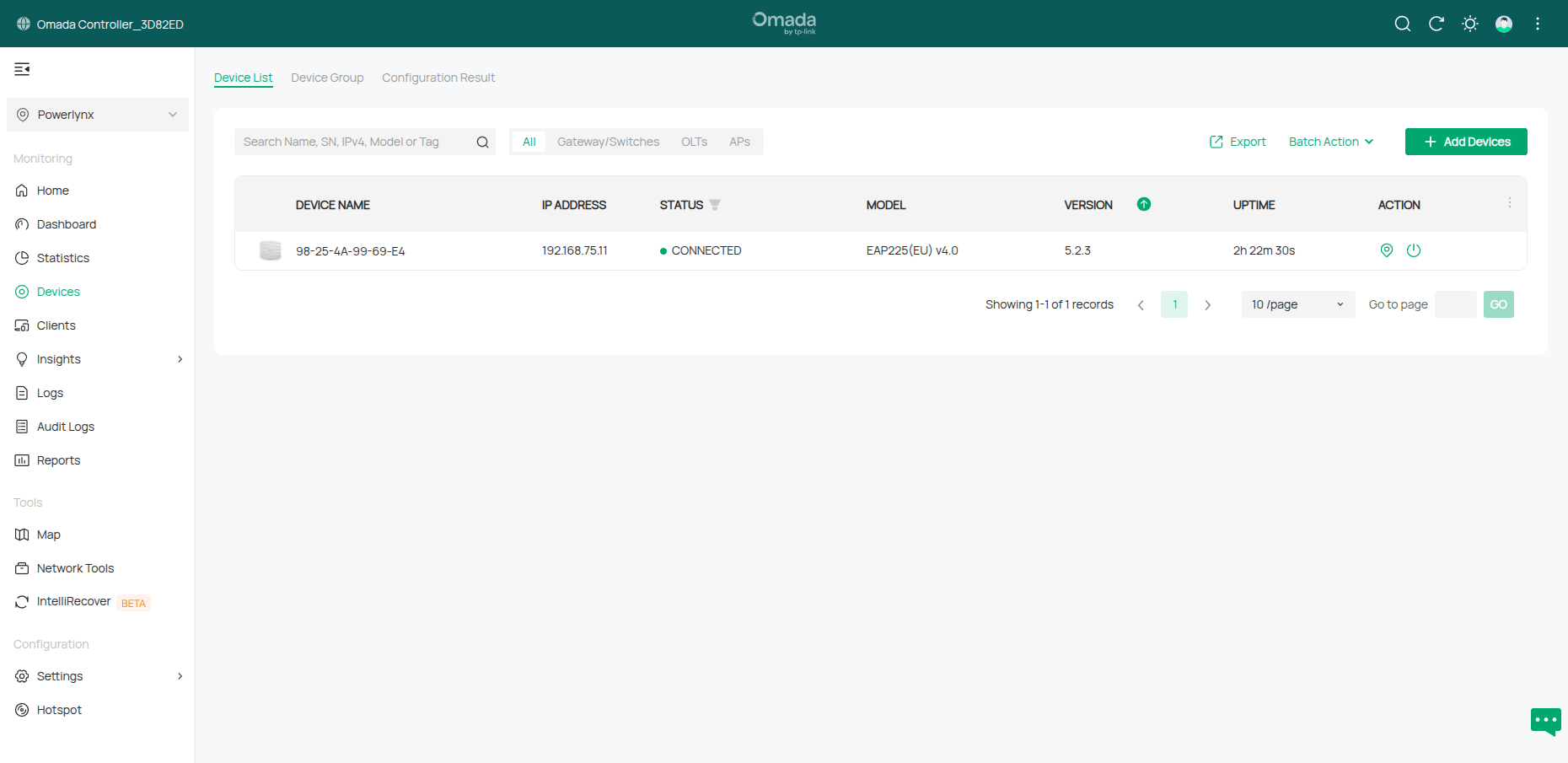
- Power up the EAP on the same L2 network as the controller; it appears under Devices.
- Adopt it and wait for status CONNECTED.
- Create a WLAN / SSID for the hotspot (Settings → Wireless Networks → WLAN) and set its name — this guide uses Power-TPLink. For a lab, Open or WPA-Personal both work; production hotspots normally use an Open SSID so the captive portal can intercept unauthenticated clients. The Portal (Step 5) is then applied to this WLAN.
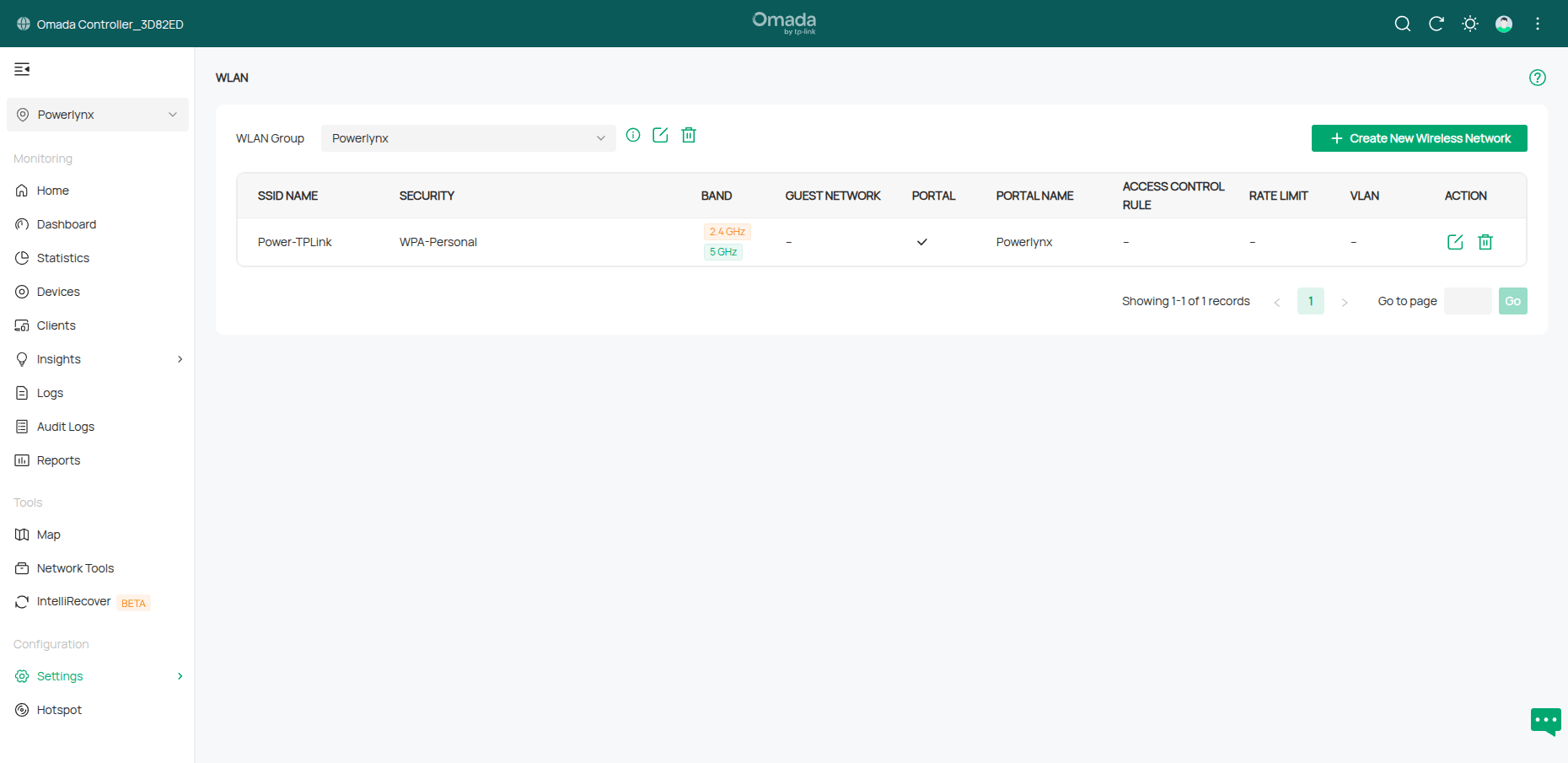
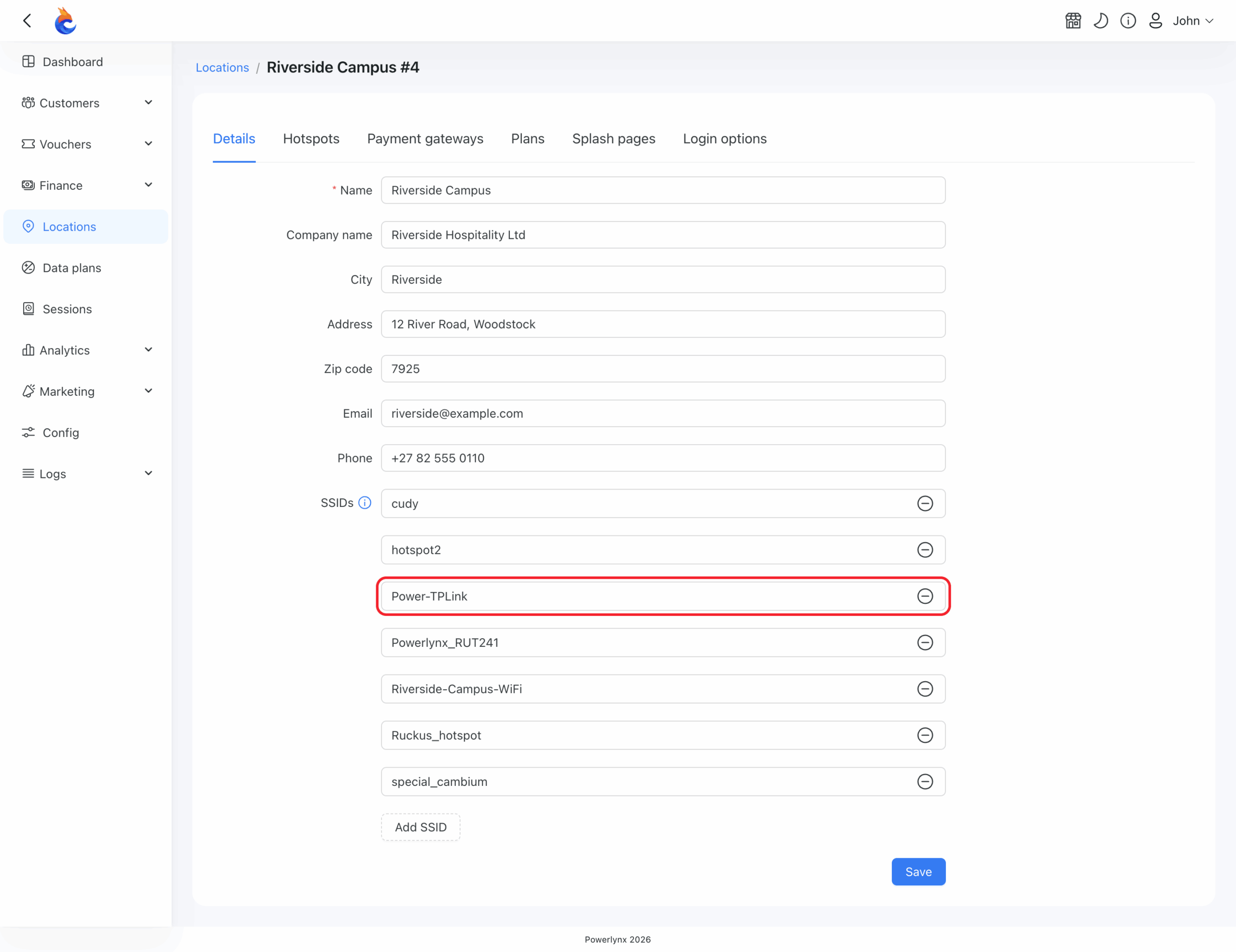
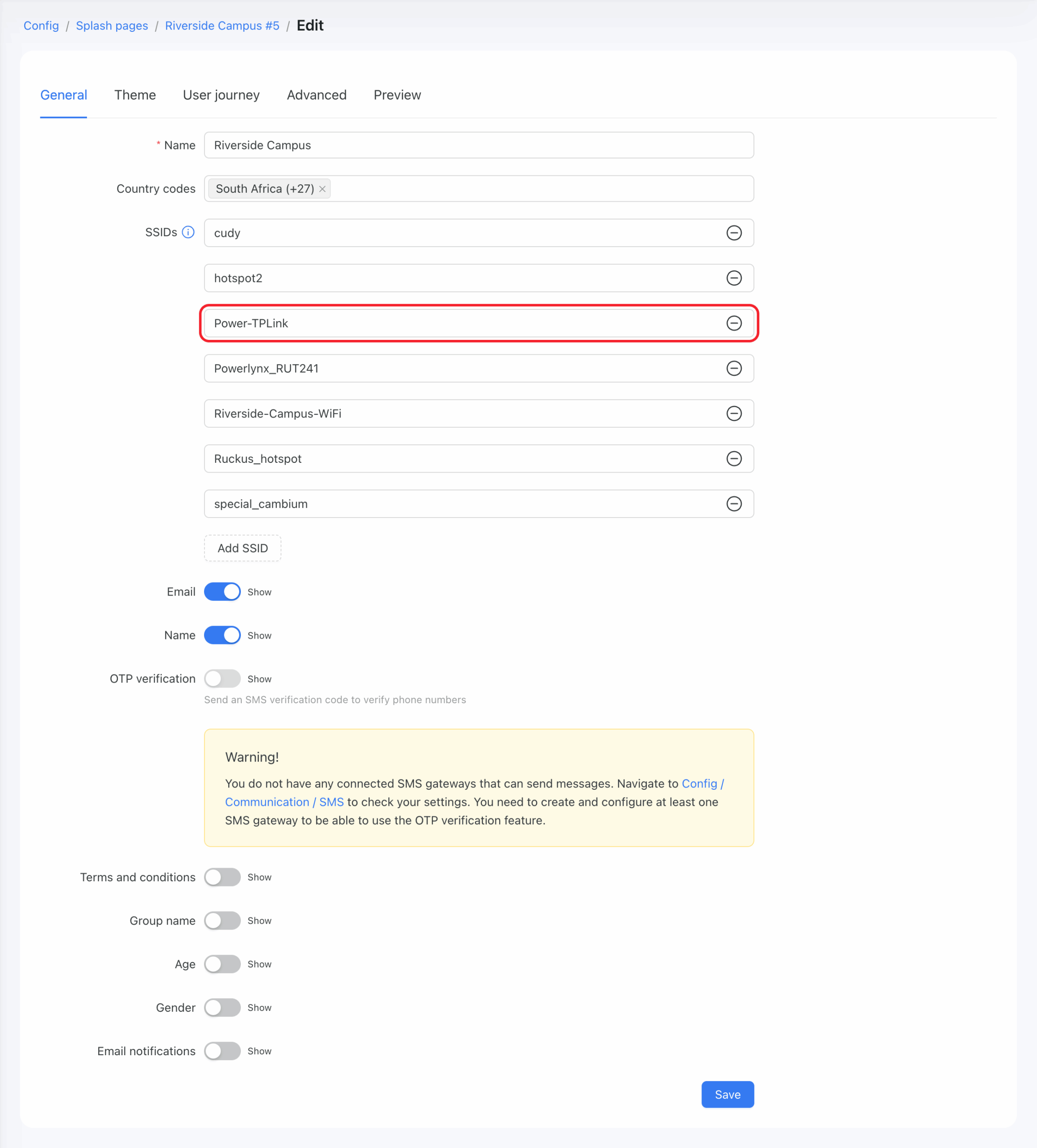
The SSID name must match on both sides. Powerlynx decides which Location and Splash Page a session belongs to by the SSID name (not by RADIUS realm/domain). The WLAN name set on the Omada EAP (here Power-TPLink) must be entered exactly as the SSID on the Powerlynx side — on the Location and its Splash Page. If the names differ, the session will not map to the correct splash page / location.
Step 3. Set Up the WireGuard Tunnel (Controller Host ↔ Powerlynx)
Install WireGuard on the Ubuntu host:
sudo apt update && sudo apt install -y wireguard
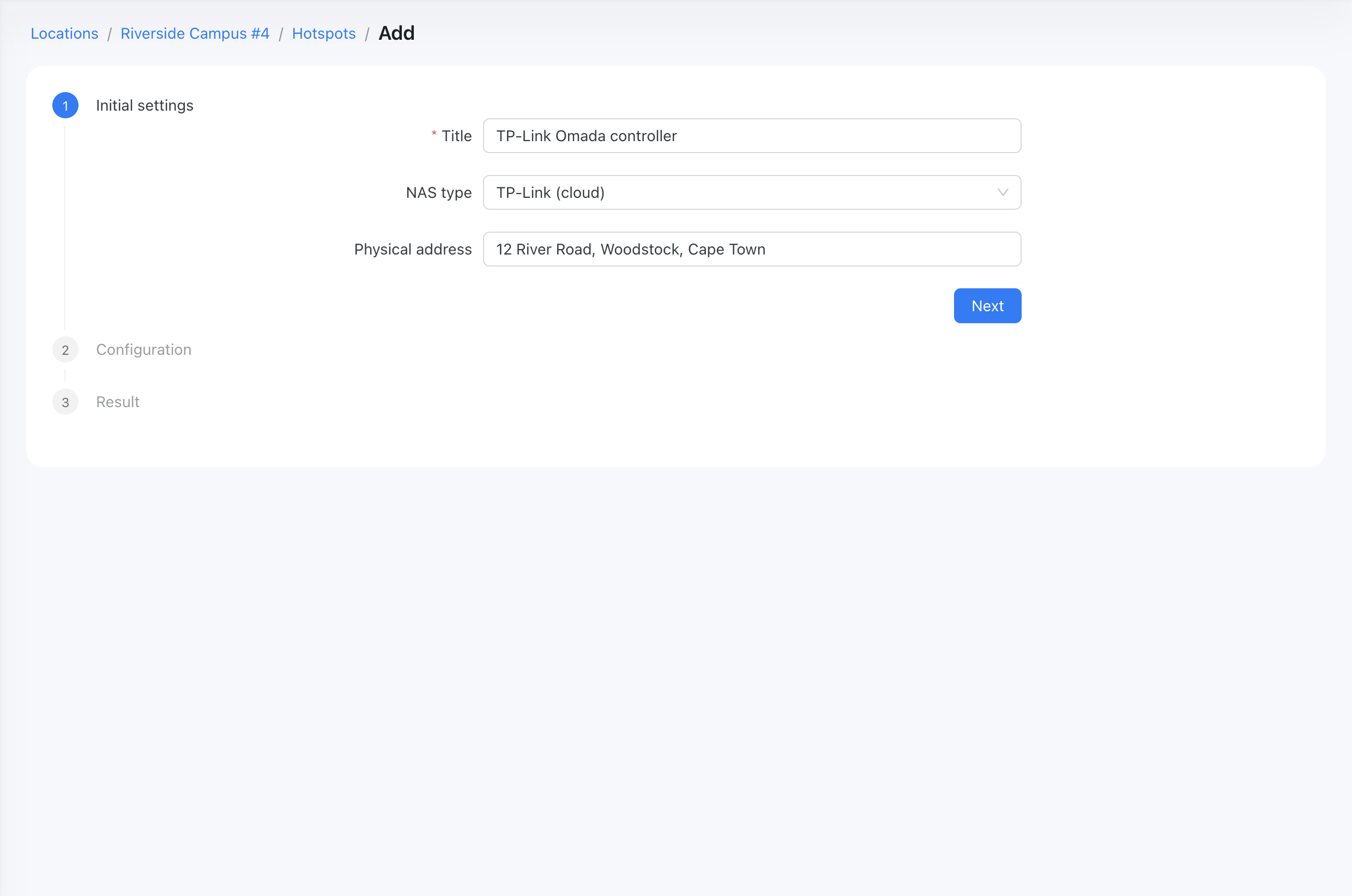
- In Powerlynx, create the hotspot: Location → Hotspots → Add. On the first wizard step (Initial settings), enter a Title, choose NAS type = TP-Link (cloud), then click Next.
On the Configuration step, set Connection type = WireGuard, click Generate Wireguard keys, enter the RADIUS secret, and finish the wizard. Copy the client private key now — it is shown only at generation time.
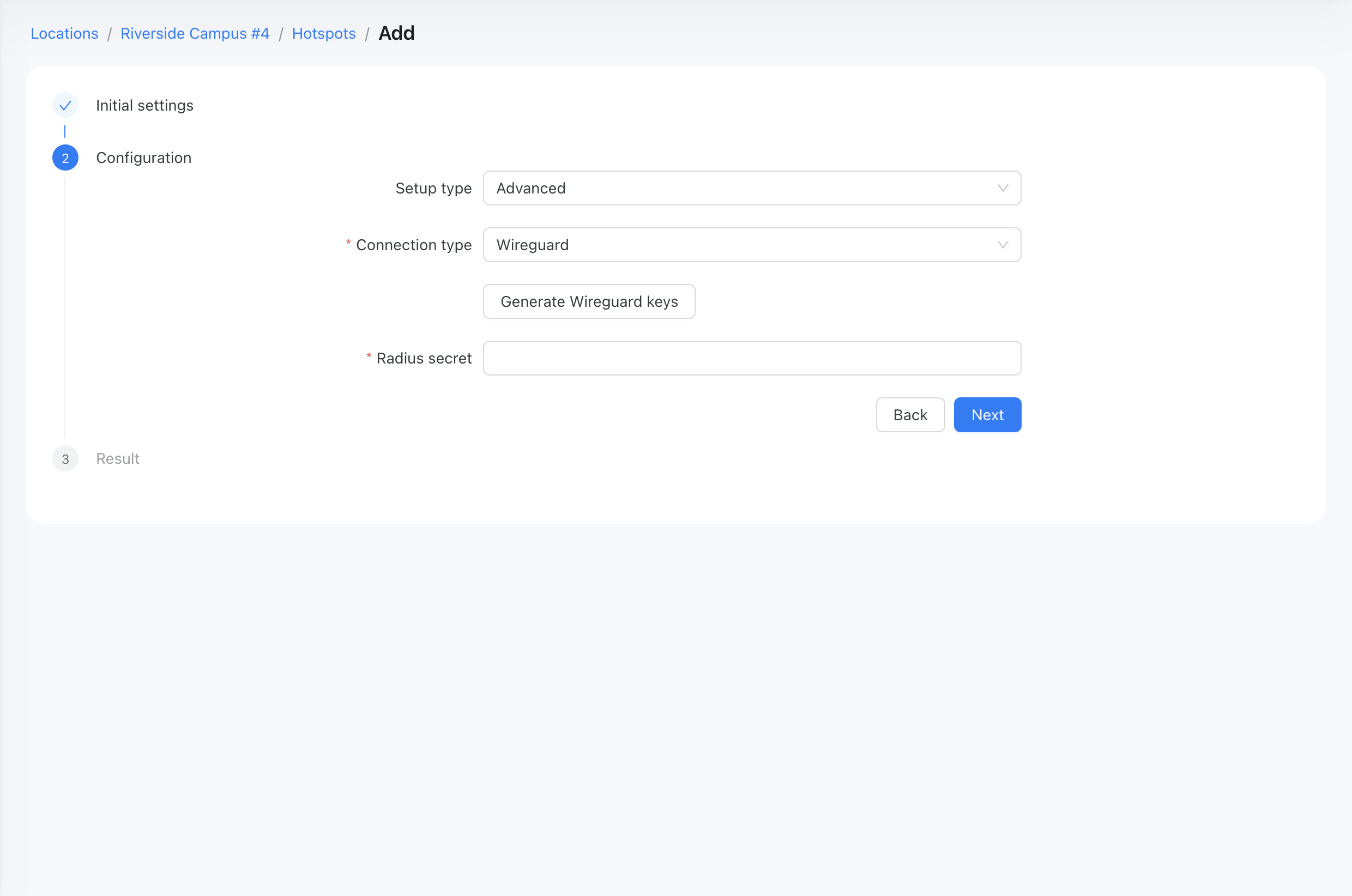
The client private key is shown only once. “Regenerate keys” is destructive — it issues a new pair and drops the existing peer, so the host would have to be reconfigured with the new key.
2. Take the server endpoint and server public key from the hotspot’s VPN configuration page in Powerlynx (the “Configure VPN” view). Create /etc/wireguard/wg0.conf on the Ubuntu host:
[Interface]

PrivateKey = <client-private-key-from-generate>

Address    = <controller-tunnel-ip>/32


[Peer]

PublicKey  = lPYDyIwk5X4tyUMNT9ny/nyPSyHwk31mzm2ahOH7iV0=

Endpoint   = 139.84.243.134:443

AllowedIPs = 172.16.0.1/32

PersistentKeepalive = 15
Bring it up, enable on boot, and verify:
sudo wg-quick up wg0                   # start the tunnel now

sudo systemctl enable wg-quick@wg0     # start automatically on boot

systemctl status wg-quick@wg0.service  # should be "active (exited)"

sudo wg show                           # peer, latest handshake, transfer counters

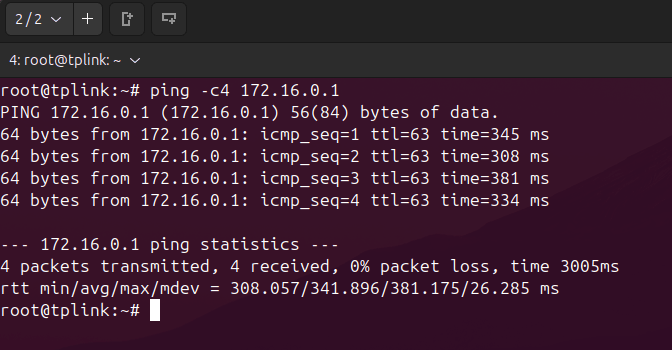
ping -c4 172.16.0.1                    # confirm connectivity through the tunnel
A successful ping to the Powerlynx tunnel address confirms the tunnel is up:
Step 4. Configure the Powerlynx Hotspot
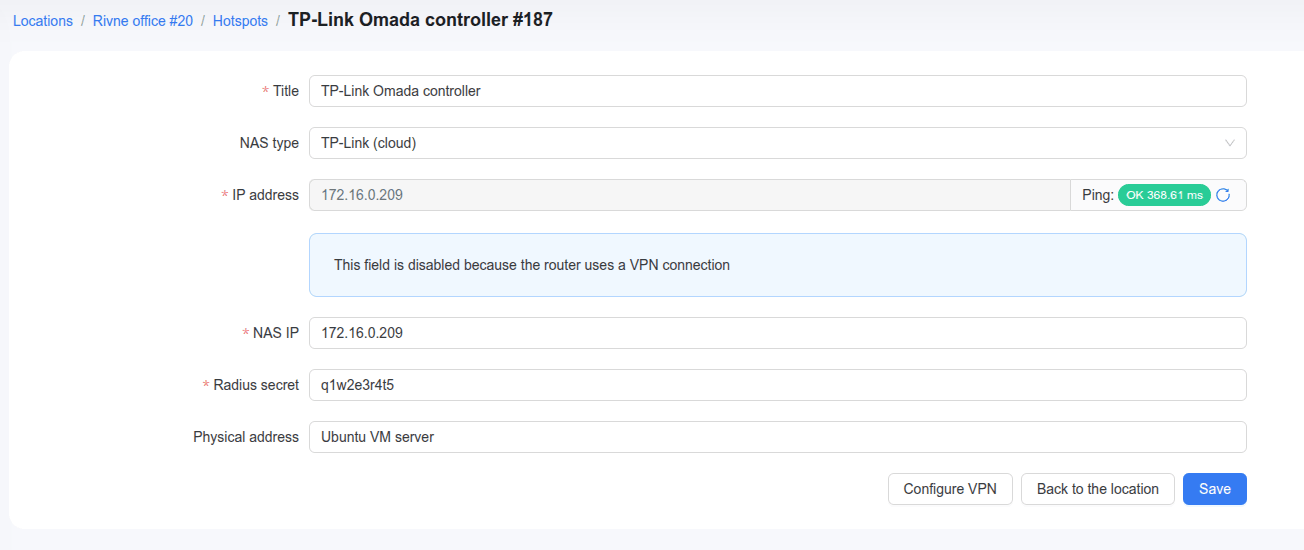
On the Powerlynx hotspot (Location → hotspot), set the following fields:
| Field | Value |
| NAS type | TP-Link (cloud) |
| Connection type | WireGuard |
| NAS IP | <controller-tunnel-ip> (the controller’s WireGuard address) |
| RADIUS secret | <your-radius-secret> |
Step 5. Configure the Omada Portal and RADIUS Profile
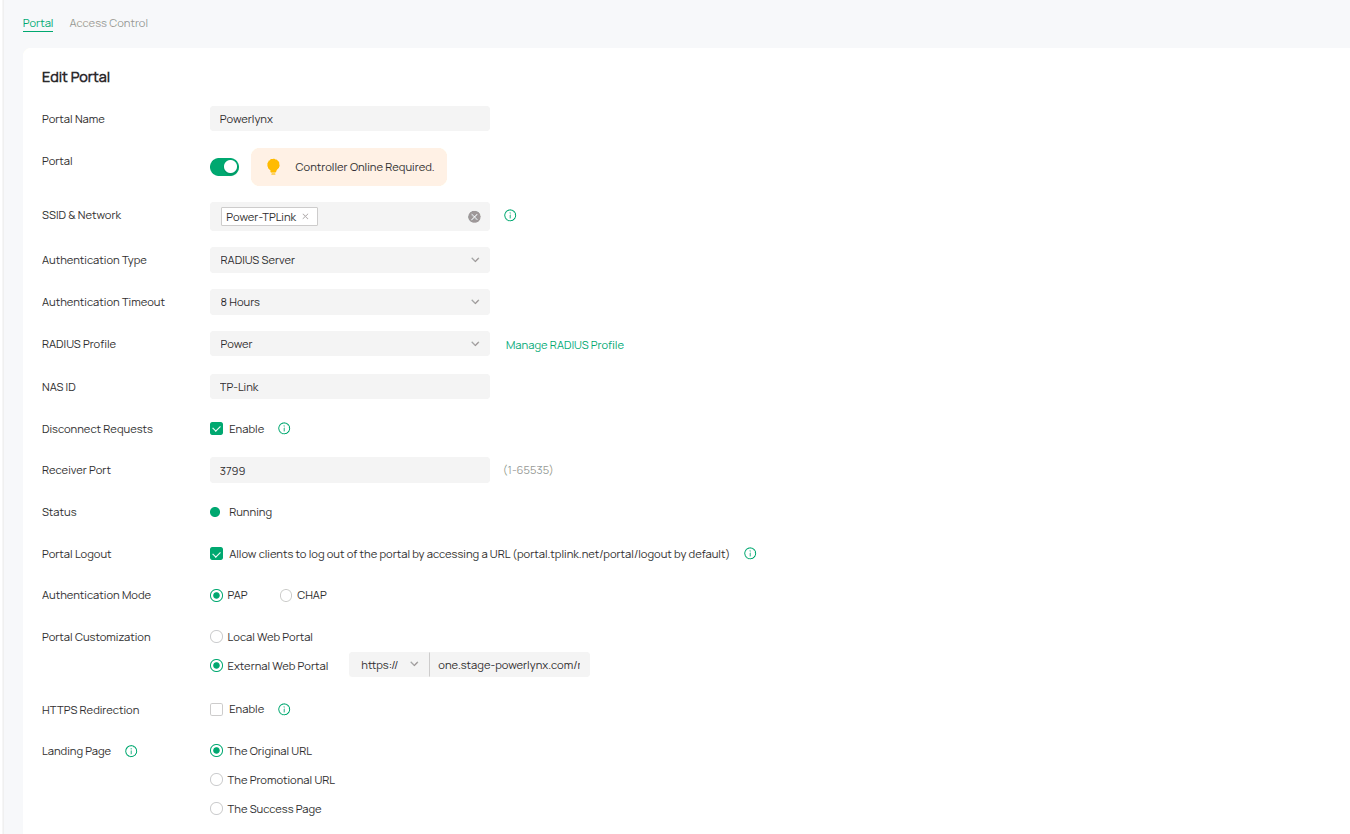
This is the critical configuration. In the controller: Settings → Authentication → Portal and Settings → Profiles → RADIUS Profile.
Portal
| Setting | Value | Note |
| Authentication Type | RADIUS Server | Do not pick “External Portal Server” — that is the deprecated controller-API flow Powerlynx does not use. |
| External Web Portal URL | https://yourpowerlynxdomain.app/redirect-flow | Replace yourpowerlynxdomain.app with your own Powerlynx domain. |
| Disconnect Requests | Enabled | Enables the PoD listener. |
| Receiver Port | 3799 | |
| Authentication Mode | PAP | CHAP as fallback. |
RADIUS Profile
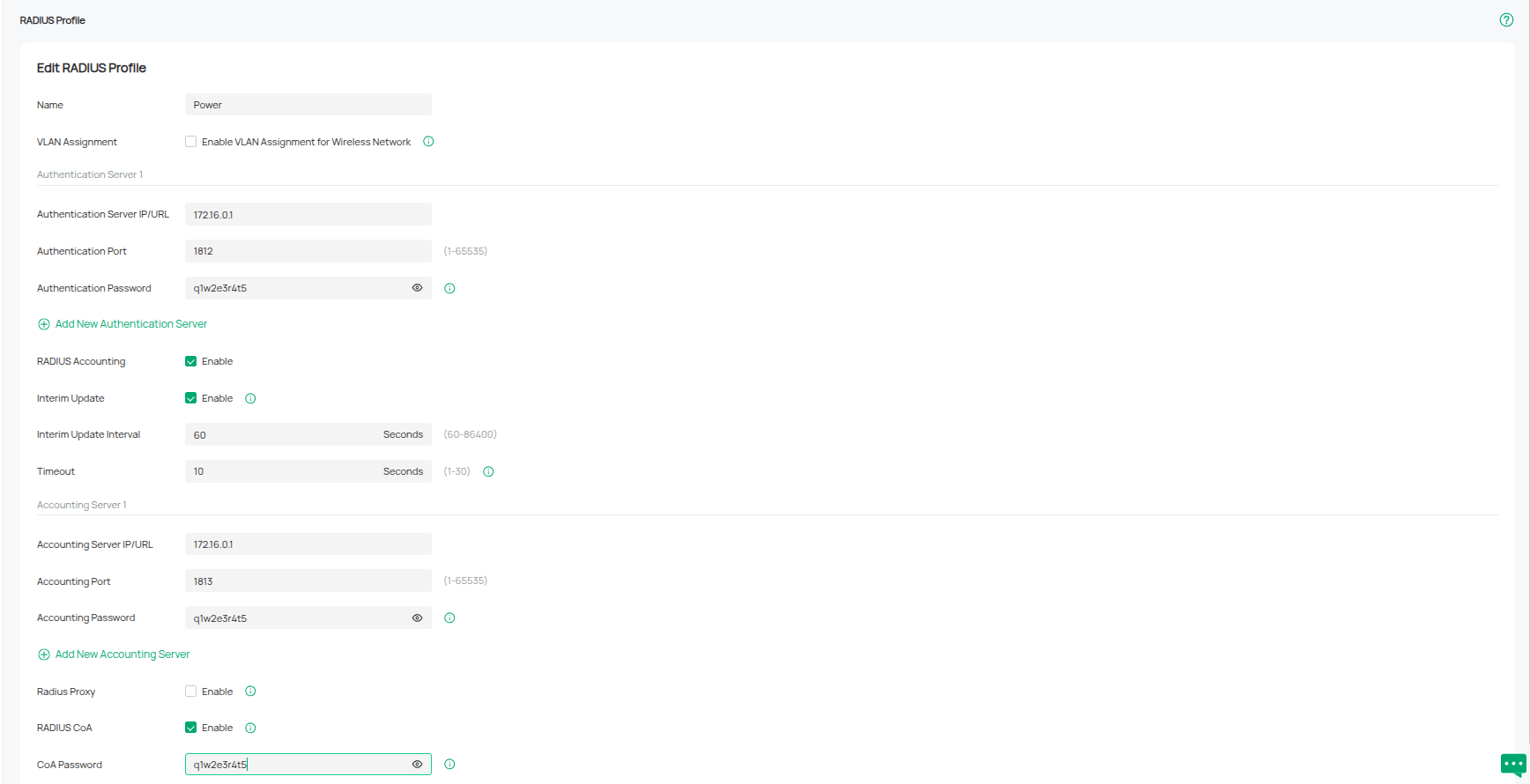
| Setting | Value | Note |
| Authentication Server | 172.16.0.1:1812 | By IP, not hostname — a hostname silently breaks accounting. |
| Accounting Server | 172.16.0.1:1813 | Same — by IP. |
| Auth / Accounting / CoA password | <your-radius-secret> | Exactly the hotspot’s RADIUS secret, all three fields. |
| Accounting | Enabled | |
| Interim Update Interval | 300 s (production) / 60 s (lab) | Must stay under Powerlynx accounting_interval × factor — see Step 6. |
Pre-Authentication Access (Walled Garden)
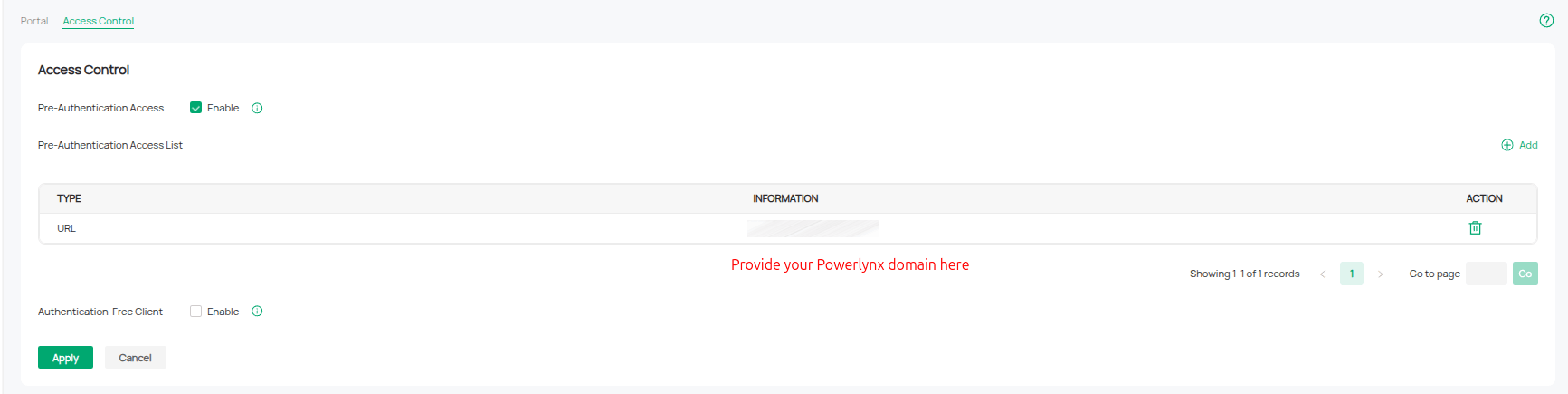
In the Portal’s Access Control tab, enable Pre-Authentication Access and add your Powerlynx domain to the list, so an unauthenticated client can reach the Powerlynx splash page before it logs in.
Step 6. Set Recommended RADIUS Attributes
Set these on the Powerlynx NAS-type attribute templates (Config → System → NAS Types). These values are what make rate limiting, session time, accounting direction, and disconnect actually work with Omada.
| Group | Attribute | Recommended Value | Why |
| Rate limit | WISPr-Bandwidth-Max-Up | {{ mul .tx_rate_limit 1024 }} | Upload cap (kbps → bps). |
| Rate limit | WISPr-Bandwidth-Max-Down | {{ mul .rx_rate_limit 1024 }} | Download cap (kbps → bps). |
| Access-Accept | Session-Timeout | {{ .time_left }} | Per-voucher remaining time. |
| PoD | User-Name | {{ .mac }} | Identifies the client to disconnect. |
| PoD | Calling-Station-Id | {{ .mac | upper | replace “:” “-” }} | Critical — must match Omada MAC format. See below. |
| Accounting | Invert accounting | ON | See below. |
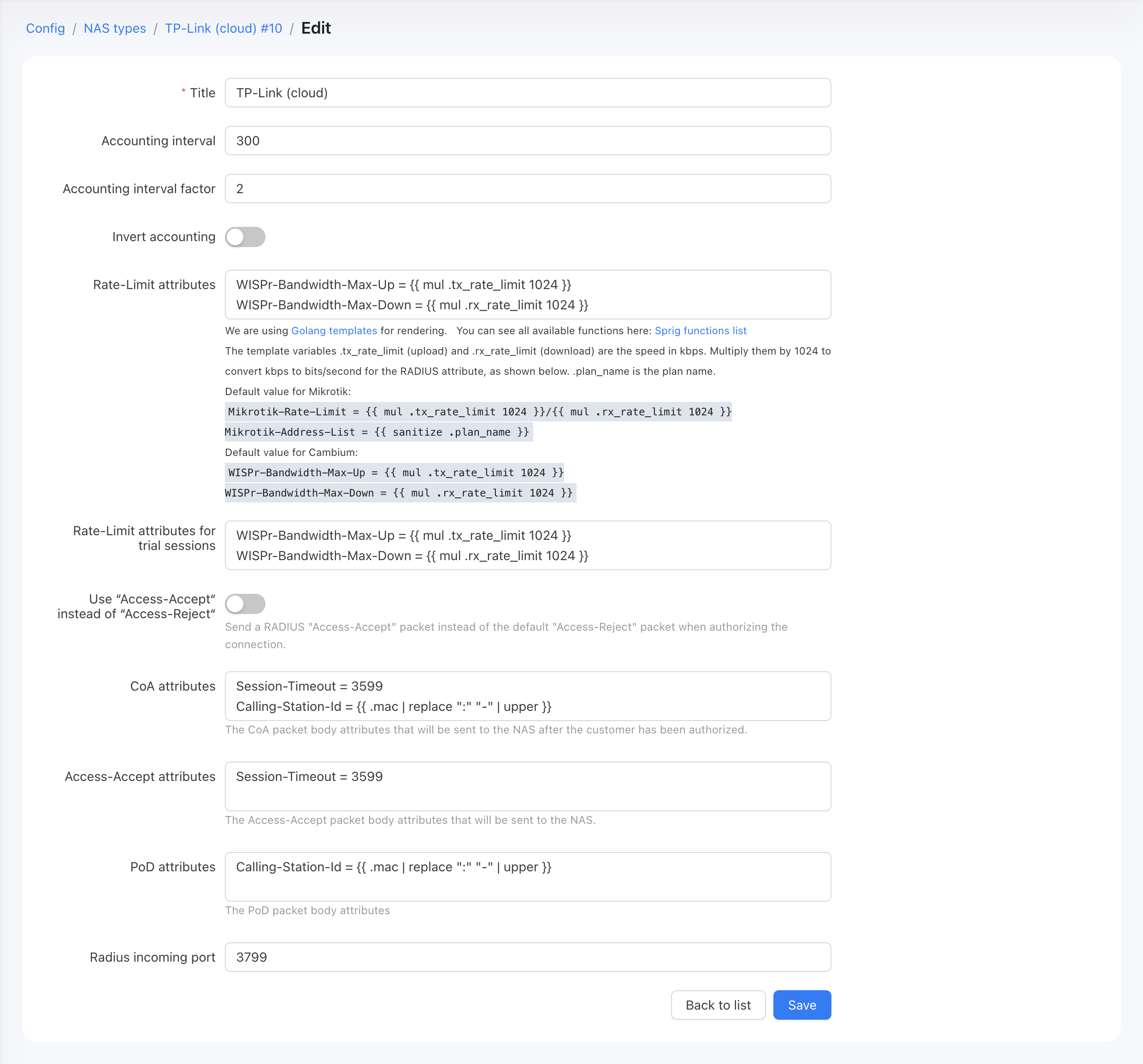
The Calling-Station-Id format is what makes PoD work. Omada matches disconnects by a MAC in UPPERCASE with HYPHENS (e.g. AA-BB-CC-DD-EE-FF). Powerlynx’s plain {{ .mac }} renders lowercase-with-colons, which Omada will not match — the disconnect is silently ignored with no ACK. Use {{ .mac | upper | replace “:” “-” }} so the value matches Omada’s own format.
Invert accounting (ON): Omada is RFC-standard — Acct-Input = upload, Acct-Output = download. With Invert accounting ON, Powerlynx maps these to the correct download/upload direction in its UI.
Interim Update interval: Powerlynx force-closes a session if no accounting update arrives within accounting_interval × factor (the Powerlynx NAS-type fields). The invariant is: Omada Interim Update interval < Powerlynx accounting_interval × factor. Production (recommended): set Powerlynx NAS-type Accounting interval = 300 and factor = 2 (a 600 s closer window), and Omada Interim Update Interval = 300 s.
Step 7. Verify
On the controller host, capture RADIUS traffic on the tunnel interface:
sudo radsniff -i wg0 -p 1812 -x           # captures 1812/1813/3799

# or, for disconnect only:

sudo tcpdump -ni wg0 -vv 'udp port 3799'
| Phase | Expect |
| Auth | Access-Request → Access-Accept. User-Name = MAC (no separator, uppercase); Calling-Station-Id = MAC upper-hyphen; NAS-IP-Address = <controller-tunnel-ip>. |
| Accounting | Start → Interim (at your configured interval) → Stop; download/upload direction correct with Invert ON. |
| PoD / disconnect | Trigger the disconnect from Powerlynx early in the session. Success = Disconnect-Request (Calling-Station-Id in upper-hyphen) → Disconnect-ACK → client dropped with an Acct-Stop cause that is not Session-Timeout. |
The Disconnect-ACK packet is the definitive PoD success signal. If you see a Disconnect-Request but no ACK, re-check the Calling-Station-Id format (Step 6).
After a successful session, check authorized / online devices in two places:
- Powerlynx — the top-level Sessions page (and the Location’s sessions view) lists live/online sessions: client MAC, plan/voucher, data used, start and expiry.
- Omada controller — Clients shows the device as AUTHORIZED (auth type Radius – …); Hotspot Management → Authorized Clients shows per-client download/upload, start and expiration time, and status.

Limitations and Gotchas
- CoA-Request is NOT supported by Omada — it returns CoA-NAK (Error-Cause “Unsupported-Attribute”). Only Disconnect/PoD works. Anything that would rely on a mid-session CoA will not take effect on Omada; it requires disconnect + re-authentication instead.
- Trial Sessions are not currently usable with the TP-Link Omada NAS type. With Trial sessions enabled, the trial flow does not work on Omada — the client is authorized and then immediately dropped (Session-Timeout = 0). Leave Trial sessions disabled for locations served by a TP-Link Omada hotspot, and use vouchers instead.
- Omada’s built-in WireGuard is gateway-only — it does nothing on a Software Controller. Terminate WireGuard at the OS level on the controller host (wg-quick).
- RADIUS servers must be set by IP, not hostname — a hostname silently breaks accounting.
- Omada Cloud has no working CoA/PoD endpoint — a self-hosted controller is required for disconnect to function.
References
- Omada Software Controller — download, all versions
- Install the Software Controller on Linux (FAQ 3272)
- Ports used by the Omada Controller (FAQ 3281)
- RADIUS + External Web Portal API (FAQ 2912)
- Omada Software Controller — product overview
- Omada SDN Controller — user guide
- TP-Link EAP225 (v3) — access point
- RFC 2869 — RADIUS Extensions (Acct-Interim-Interval)
- Powerlynx documentation — TP-Link Omada
With the Omada Software Controller, WireGuard tunnel, and RADIUS profile configured in Powerlynx, your TP-Link Omada EAP deployment is fully integrated: users are redirected to the splash portal, authenticated via RADIUS, and managed through CoA/PoD session control. For full Powerlynx platform documentation, visit docs.powerlynx.app.