
Powerlynx now supports FNB Voucher — a prepaid voucher from First National Bank (South Africa). Like 1Voucher, it turns cash into a PIN your customers can use to pay for internet access directly on the splash page, with no bank card or mobile wallet required.
What Is FNB Voucher?
FNB Voucher is a prepaid voucher issued by First National Bank in South Africa. Customers purchase a voucher and receive a PIN they can redeem as a digital payment — a straightforward cash-based way to pay online without a bank card.
This makes FNB Voucher a natural fit for hotspot deployments in South Africa, where prepaid and cash-based payments are a preferred method for many customers buying internet access.
More Ways to Monetize Your Wi-Fi Hotspot with Powerlynx
FNB Voucher joins the growing list of payment gateways Powerlynx already supports, including 1Voucher, Netcash, PayPal, Stripe, Payfast, DPO Pay, M-Pesa, MTN MoMo, Xendit, Paystack, and more. This ensures your customers always have a payment option that works for them, whether they prefer prepaid vouchers, mobile money, or card payments.
Two Flash Platforms — Both Supported
FNB Voucher runs through Flash, which operates two platforms. Powerlynx supports both:
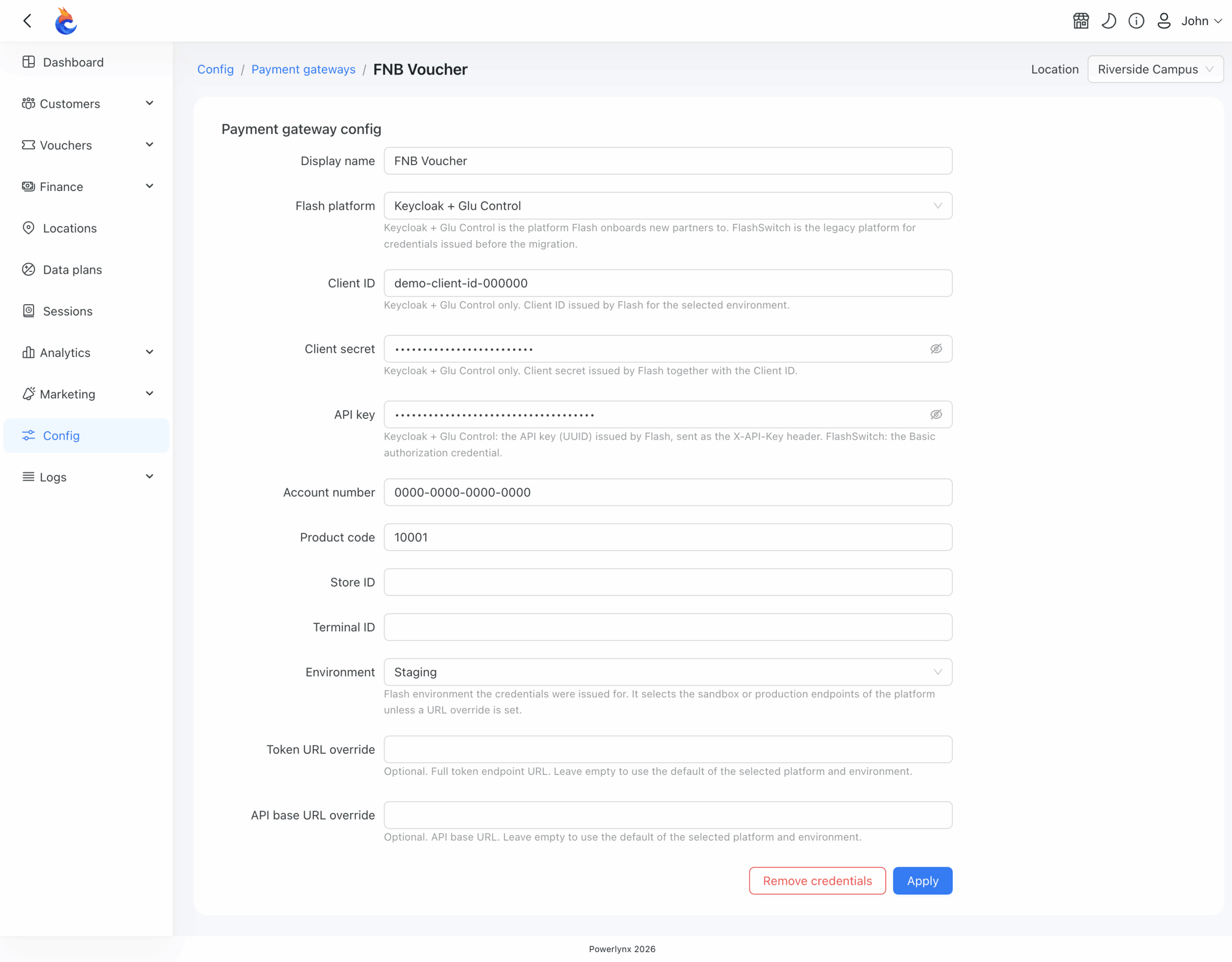
- Keycloak + Glu Control — the current Flash platform. All new merchants are onboarded to it. Flash issues a client ID, client secret, and API key.
- FlashSwitch (legacy) — the older platform. Existing merchants can keep using it, but Flash will switch it off. When that happens, FNB Voucher payments stop until you update your configuration to Keycloak + Glu Control with new credentials from Flash.
If you’re not sure which platform your credentials belong to, ask Flash before you start.
Paying with FNB Voucher on the Splash Page
For your customers, paying with FNB Voucher is simple:
- Choose a data plan on the splash page.
- Enter the FNB Voucher PIN.
- Powerlynx contacts Flash to validate the PIN. Once confirmed, access is granted.
If the PIN is rejected, the customer sees the reason Flash gives — for example, “The voucher you have entered could not be found.” If the connection to Flash drops before Powerlynx gets an answer, Powerlynx reverses the payment, so the customer is not charged for access they didn’t get.
Payment Tracking
All FNB Voucher payments captured by Powerlynx are stored with others under Finance → Payments, giving you full visibility over your hotspot revenue.
How to Start Accepting FNB Voucher Payments
You need a Flash merchant account with the Exclusive Voucher product enabled. If you don’t have one, contact Flash to request it.
Once you have your credentials, go to Config → Finance → Payment Gateways → FNB Voucher in Powerlynx and fill in the form. Then enable FNB Voucher for each location that should offer it: Locations → open a location → Payment Gateways tab → turn on FNB Voucher. For the full setup details, see our FNB Voucher documentation.